

Lightning Infill and the Profit Margin Story You're Ignoring

Updated: Oct 13
In the past month, we organized the Hive Sprint Week: 5 Days, 5 Sessions, and 5 Topics covered by experts. In that week, I delivered a talk on optimizing print settings for the holiday rush, and one topic I touched upon was Lightning Infill. (You can watch all the sessions here).
While I am no "expert" per se, one thing I can say confidently after being almost half-a-decade into 3D printing is that Lighting Infill is definitely a game-changer. Preparing for the talk, I experimented with it a bit more, and I realized what a boon it can be for commercial sellers like those on Cubee.
In this piece, I want to explore and expand on Lightning Infill, and encourage you to experiment with it in your own process.
Let's light things up!
What is Lightning Infill?
First things first: for the uninitiated, let's understand the core of lightning infill.
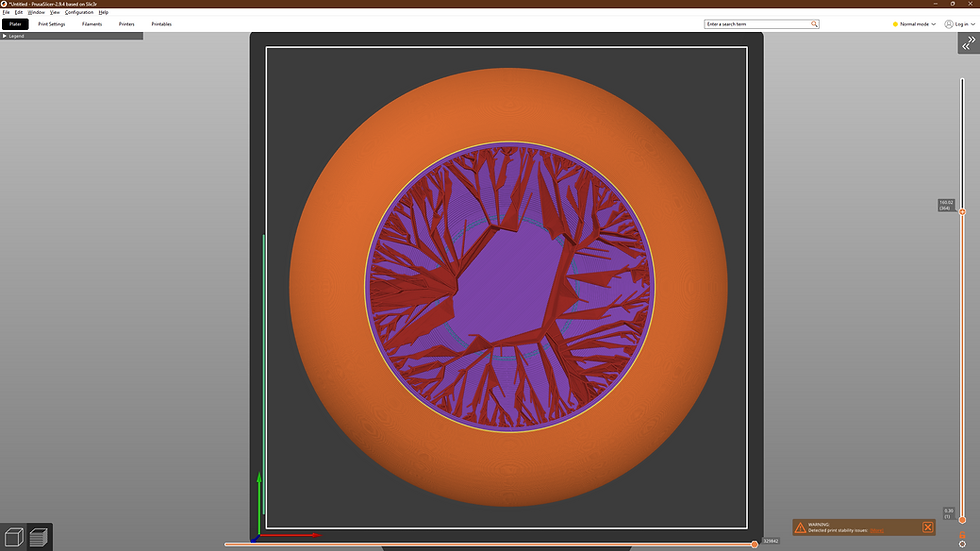
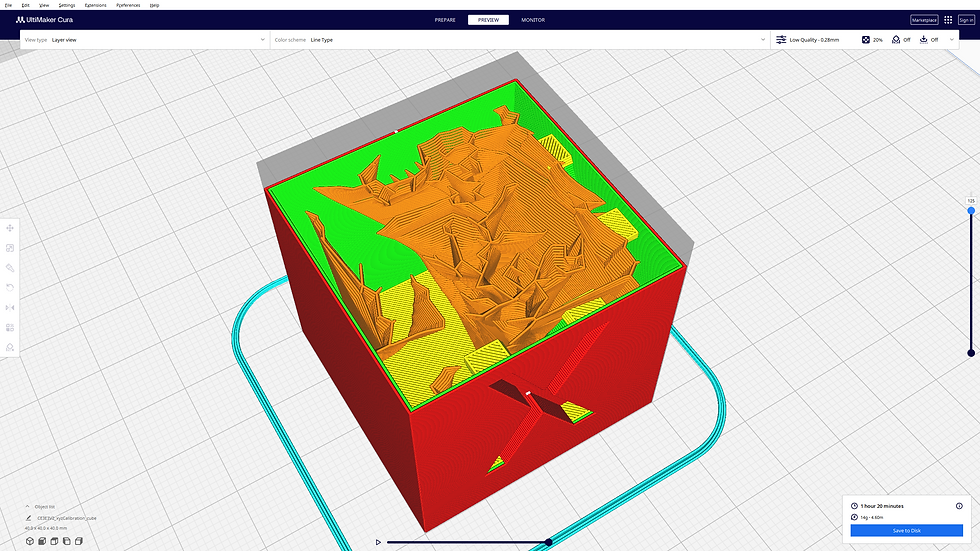
Most infill patterns (Grid, Gyroid, Cubic) extend from the bottom of the print to the top, creating a consistent internal lattice. Lightning Infill is different. It doesn't care about the previous base. It only cares about the top.
It works like a tree growing upside down (or internal tree supports). It analyzes the model and calculates exactly where the internal overhangs and "ceilings" are. Then, it builds branching supports only where necessary to hold those top layers up. The rest of the model? Completely hollow.
There's no strength equation here, and that's the whole point!
The Economics of "Printing Air"
For a hobbyist printing one or two items, saving 50 grams sounds "okayish." It’s a coffee’s worth of plastic. But as a commercial seller, the math changes violently. Every gram counts. If you save 100 grams on one piece, you end up saving almost 1 kilogram of filament on just 10 pieces. That is an entire spool of profit you just reclaimed.
Let's understand this with a real-world example from the Hive. We take the popular Nobody-Reader statue by Collecticraft. (Note: We've switched off the visibility of supports for ease of comparison).
1.Scenario A: The Standard (Grid Infill - 15%)

When sliced with Bambu Studio using standard settings, the entire model weighs around 100 grams.
The Infill: Out of that 100g, a staggering 60 grams is just infill material.
The Time: The total print time sits at around 5 hours.
2.Scenario B: The Efficiency Play (Lightning Infill - 15%)

We take the exact same model and slice it using identical settings, changing only the infill pattern.
The Savings: The model now weighs just 50 grams. The infill has dropped to 15 grams ONLY.
The Speed: The print time is cut by a full hour, bringing it under 4 hours.
By simply changing a dropdown menu, you have slashed your material cost by 50% and increased your production speed by 20%. Scale that over a week of orders, and the "Lightning" setting effectively pays for your electricity bill.
The "Feel" Problem (and How to Fix It)

Lightning Infill is a double-edged sword. The very thing that makes it useful is also what prevents people from using it: weight.
We psychologically associate weight with quality. A lightning-infilled 3D print feels incredibly light, which can sometimes be interpreted by customers as "cheap" or "flimsy."
If you were to hold the Nobody-Reader model printed with Lightning Infill, it would feel light, finicky, and lose its perceived value entirely. You'd save a few dollars, but end up making the customer feel like they were cheated.
How to add "premium" weight safely: Avoid loose sand or powder—it’s a recipe for disaster if it spills into your printer’s fans or belts. Instead, try these professional workarounds:
The "Anchor" Base: Use a Modifier Block in your slicer to set the bottom 10-20mm of the model to 100% infill. This lowers the center of gravity, making statues and vases feel stable and planted without wasting plastic on the upper sections. (Let us know if you'd like a tutorial on this one!)
Pause and Drop: Insert a generic pause command at 20-50% height. Drop in a few heavy washers, large nuts, or non-magnetic weights, and secure them with a dab of hot glue so they don't rattle. Then, resume the print. It’s clean, safe, and gives the object a satisfying "heft."
The Plaster Pour: If the model has a large flat base, design a small hole in the bottom (or drill one later). After printing, fill the hollow cavity with plaster of Paris or resin. It’s cheap, heavy, and turns a plastic print into something that feels like stoneware.
When to Use the Lightning Infill?

By now, you get the gist. Lightning Infill is not for everything. It has zero structural integrity. If you squeeze the walls hard, they might flex or crunch.
Use it for:
Display Models: Busts, statues, and figures.
Cosplay Props: Helmets or armor where low weight is a benefit for the wearer.
Visual Prototyping: When you just need to check the scale or fit.
Do NOT use it for:
Functional Parts: Brackets, tools, or anything that bears a load.
Items Handled Often: Toys or keychains that might get crushed by a child's grip.
How to Do It Right (The Setup)
Using Lightning Infill requires a slight shift in how you set up your walls and top layers to ensure the print doesn't fail. Since the inside is hollow, your outer shell needs to do the heavy lifting.
1. Finding the Setting

Bambu Studio / Orca: Under "Strength" > "Infill," change the Pattern to "Lightning."
Cura: Under "Infill," change Infill Pattern to "Lightning."
PrusaSlicer: Under "Infill," select "Lightning" from the pattern list.
2. Increase Your Wall Loops

Since you don't have a grid supporting the walls from the inside, the outer walls are vulnerable. Increase your Wall Loops (Perimeters) from 2 to 3 or 4. This prevents the model from feeling brittle and ensures light doesn't shine through the thin plastic. And you're still saving material and time.
3. Buff Your Top Shell

Lightning infill supports the top layers, but the contact points are small. To prevent "pillowing" (where the top layer sags or has holes between supports), increase your Top Shell Layers by 1 or 2 extra layers. This guarantees a perfect surface finish.
Final Thoughts

We often don't explore enough settings in the slicer to improve our business efficiency. The vast majority of items in the Hive catalog are art, decor, and props—things that can massively benefit from using Lightning Infill.
For these "showpiece" items, the inside doesn't matter. The outside does.
Lightning Infill aligns your printing process with that reality. It stops you from wasting time and money on internal structures that nobody sees and nobody needs. It’s not cutting corners; it’s optimizing for the only thing that counts: the final product.
Let me know if you have any questions, comments, or suggestions on this piece. If you'd like for us to do more articles like this, or have any blog topics in mind which you think could be helpful for the Hive community, please comment below!
Keep buzzing!

Awesome Input. Will be checking back again.👍