

The Fuzziness of Fuzzy Skin in 3D printing

Updated: Oct 13

If you've been browsing the Hive catalog lately, you might've noticed there are quite a few models that feature a distinct, textured finish that looks less like 3D printed plastic and more like high-end sandstone.
This isn't any gimmick or new material, but rather the Fuzzy skin setting, which is, I must say, an underrated feature that most of us don't use yet, but should start soon.
In fact, if you had asked me a while back about the "Fuzzy skin", I would've probably called it one of the slicer tricks and dismissed it. Something you toggle on once to say "cool," and then never touch again.
But, the more I experimented with solid 3D prints, sellable Hive models, the more my opinion shifted. It has stopped feeling like a novelty now and has become a legitimate design decision, which I think about while printing the models!
Let's understand why and how, as a Cubee seller, you benefit from using the Fuzzy skin in your 3D prints!
What is "Fuzzy Skin"?

Fuzzy Skin is a slicer setting (available in Bambu Studio, Cura, and PrusaSlicer) that jitters the printer’s nozzle while it draws the outer walls of your model. Instead of a smooth, straight line, the nozzle vibrates to create a rough, randomized texture.
It adds grip to the models, it gives a unique texture, and it takes away from the typical "3D-printed" feel of the object. Once you start using it on a regular basis, you'll come to notice your buyers getting tricked with the material feel and the perceived quality of the product, so to speak.
Which brings us to the next point.
The Psychology of "Premium"
We tend to chase smoothness in 3D printing because it feels like progress. Fewer layer lines. Cleaner surfaces. More "manufactured." But ironically, smooth surfaces highlight every flaw: a slight Z-wobble, a bit of ghosting, or that cheap plastic sheen.
Fuzzy skin flips that equation. By introducing controlled micro-variations and adding a texture to the prints, it breaks the uniformity that FDM prints are known for.
There is a visual psychology principle at play here. Our eyes are excellent at detecting patterns (like layer lines). Texture introduces randomness, and randomness breaks pattern recognition. This is why a matte finish hides scratches and why stone looks better than polished concrete in imperfect spaces.
The Tactile Factor: "Is This Ceramic?"
One of the most underrated aspects of fuzzy skin is how it feels. A smooth PLA surface often feels cheap and slippery. As mentioned before, it easily gives away that "plasticky" feel of your object, making it less premium. Fuzzy skin adds grip, warmth, and weight.
Whenever I've shown off my Fuzzy skin 3D prints to my friends, potential customers, or just the public in general, I've been inundated with questions! "Which material is this?" "Is this really 3D printed?", or things like "Is this actual wood?". It was just plain old PLA. Texture changes the perception of value more than the material ever will.
For you, as a seller, looking to make a profit on your 3D prints, the perception of your items is one of the most important things! You're selling not a 3D print, but an item that the customer is going to use! If you can make a plastic vase feel like stoneware, you can price it like stoneware.
When to Enable the "Fuzzy"
Fuzzy skin isn’t a "set it and forget it" default—it is a tool to be used deliberately. Here is where it consistently shines for the Hive Catalog:
Lamps:
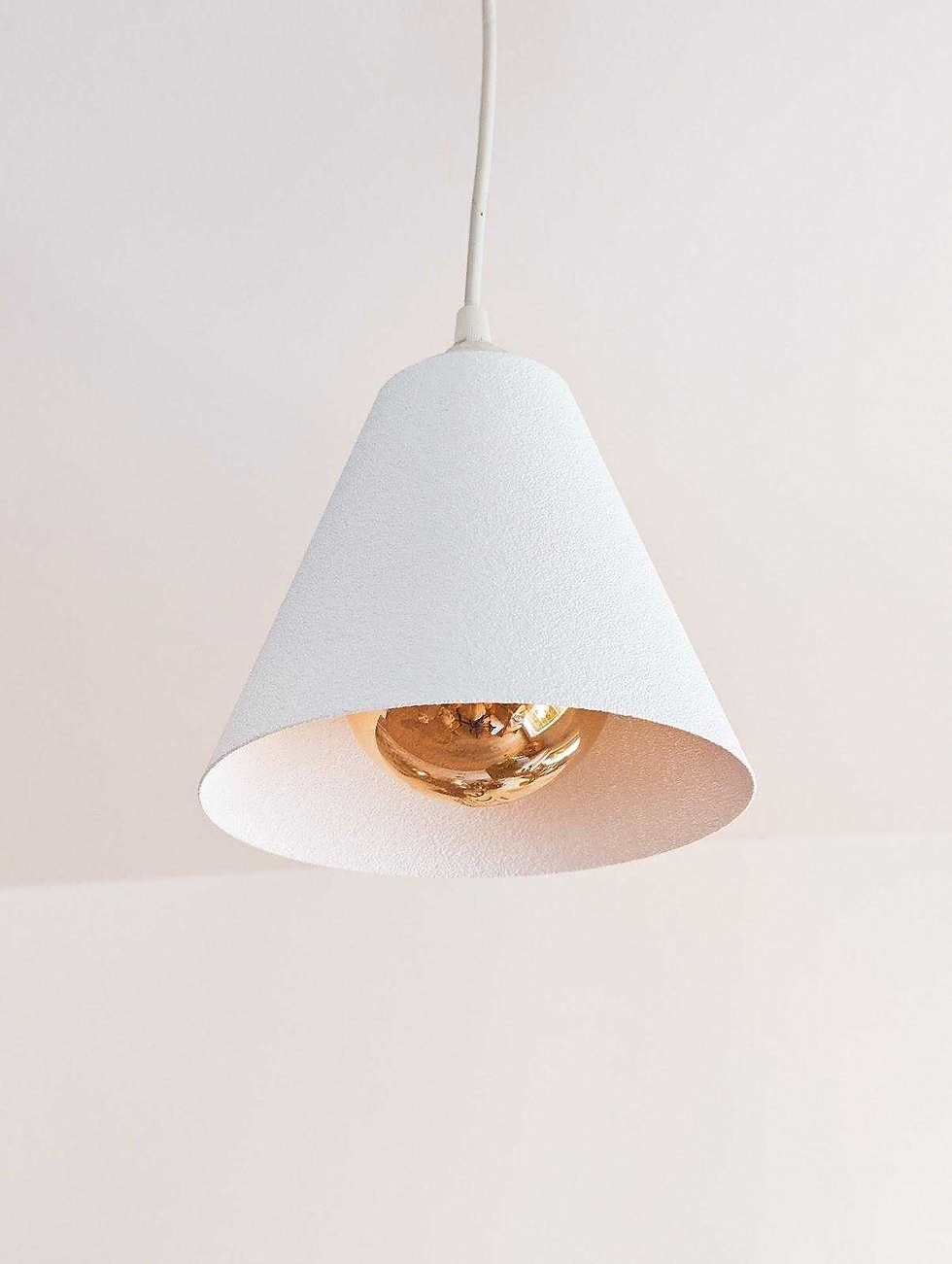
Lampshades and vases benefit massively from fuzzy skin. The initial instinct might be to use the Fuzzy skin for the lamp bases. And you're not wrong. Fuzzy skin definitely works well for the base. It adds a texture, gives it grip, and makes it blend easily with the rest of your furniture.
Next time, however, try using the Fuzzy skin on the lampshades as well. It diffuses light beautifully, creating a warm glow without the harshness of clear layer lines. It helps the object exit the "3D printed" category and enter the "store-bought."
Home Decor
The Nobody series from Collecticraft looks beautiful with Fuzzy skin. It's designed to utilize the benefits of Fuzzy skin to the maximum. When you 3D print any of the models from the Nobody series, with the right filament color, the model looks akin to ceramic instead of plastic.
Similarly, there are several vases in the Hive catalog that look premium when printed with Fuzzy skin.
Grip-Heavy Functional Parts
Think of tool handles, knobs, paper-towel holders, or even adjustment wheels in certain items. The added micro-texture increases friction without adding geometry that complicates the model. It provides grip without a redesign.
Hiding the "Sins" of Mass Production
Fuzzy skin creates a consistent finish even if your printer isn't perfectly tuned, masking minor ringing or extrusion issues. It reduces your waste pile by making minor defects invisible.
This, in turn, helps you 3D print at scale while saving a few dollars in wasted material and time.


How to Do Fuzzy Skin Right?
Fuzzy skin comes with trade-offs—slightly longer print times and reduced dimensional accuracy. You need to control the chaos. Here is how to get started:
For the Absolute Beginner: Finding the Switch If you’ve never touched this setting, don’t worry—it’s hiding in plain sight in almost every major slicer.

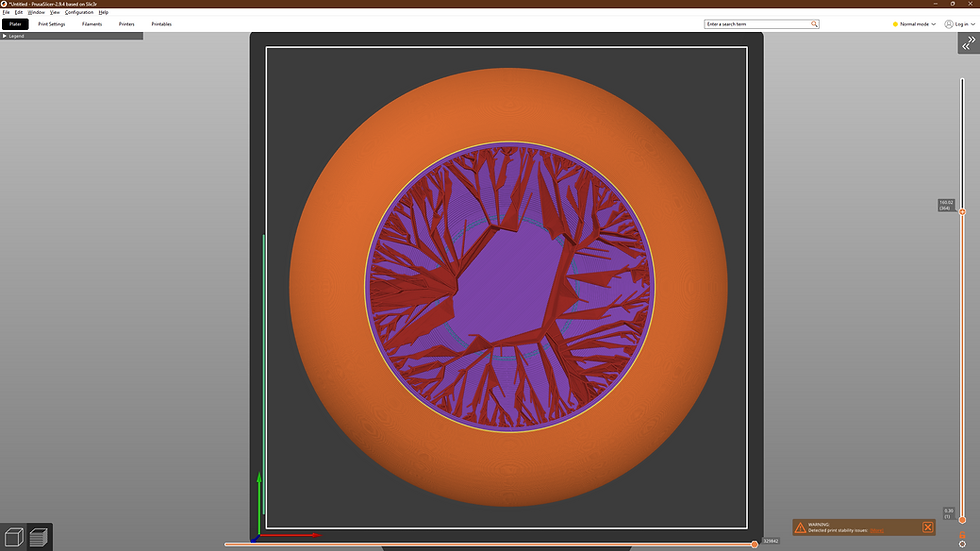
Bambu Studio / Orca: Go to the "Others" tab in your process settings. Scroll down to "Fuzzy Skin" and change the dropdown from "None" to "Contour."
Cura: Under "Print Settings," search for "Fuzzy" in the search bar. Check the box for "Fuzzy Skin."
PrusaSlicer: Look under "Print Settings" > "Layers and Perimeters." You’ll find the fuzzy skin section near the bottom.
Always Use "Contour" Mode

Once you find the setting, make sure you select "Contour" (or "Outside Walls") rather than "All Walls." This applies the texture only to the visible exterior. If you leave it on "All Walls," your slicer will fuzzy up your internal screw threads and precise holes, making the parts impossible to assemble.
The "Magic" Numbers.

A good starting point for a premium, subtle texture is a Point Distance of 0.8mm and a Thickness of 0.1mm. This gives a nice matte finish without looking too rough. If you want a "cast iron" look, bump the thickness to 0.2mm or 0.3mm.
Check the File. Many designers on Cubee now include .3MF files with these modifiers pre-applied. Look for these to see how the pros are handling the geometry.
Final Thoughts
Fuzzy skin taught me an important lesson about 3D printing: Perfection is not always the goal. Control is.
Sometimes, when you introduce chaos in a controlled way, it produces better results than chasing absolute precision. Hiding the printer's incompetence is not an issue here; it's about how to embrace it and make it even better and useful for the business.
So, fire up your slicer and try it on your next batch of Hive models. Once you stop seeing Fuzzy skin as a gimmick and start seeing it as a branding tool, you’ll wonder why you ever dismissed it in the first place.


Ik gebruik de fuzzy skin al een hele tijd. Vooral bij lampvoeten of andere voetdelen die het gewicht of stabiliteit moeten verhogen. Het voelt degelijk en ziet er professioneel uit. Wil je echt een industriele look of urban speel dan eens met de settings qua dikte en afstand van de fuzzy uitsteeksels. Succes!
I always thought Fuzzy Skin was mainly there to give your print an identity crisis. But your point about perception (and how smooth surfaces basically spotlight every flaw) is annoyingly logical. Once my printer finishes its current life’s work, it can move on to its next challenge—and I’ll give this a try. Thanks for the info.😀